First minimal router: an OpenWrt gateway for the homelab
Our first homelab is assembled: three ThinkCentres, a switch and a patch panel in a 10-inch rack, with the router sitting on top. Before installing anything on the machines, we need to decide how they reach the internet, and how the internet can reach them.
We don’t want the cluster on the same network as our home devices. If a service we experiment with gets compromised, it should not be able to reach our laptops or phones. And when we later publish services, we don’t want to open ports on our home internet box.
Instead, we will route all homelab traffic through the VPS we hardened earlier. The router that does this is the TP-Link Archer C7 v2.0 (AC1750) we already had, running OpenWrt, an open-source Linux distribution for routers.
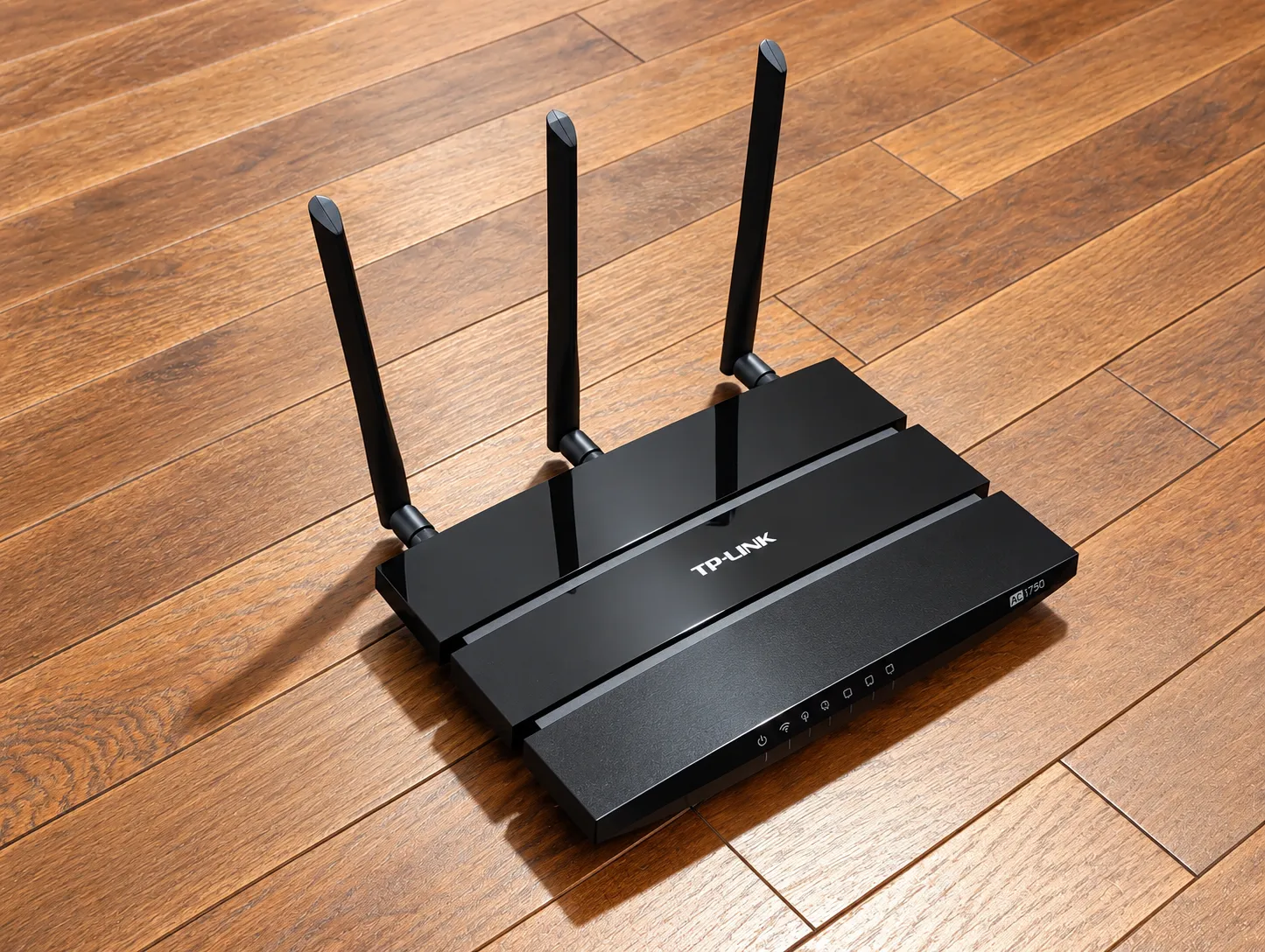
What we will end up with:
- a DMZ network for the homelab machines, isolated from everything else,
- an admin network on a single wired port, the only place the router can be managed from,
- the router connected to the internet as a Wi-Fi client of our home box, so no cable runs across the flat,
- all DMZ traffic leaving through a WireGuard tunnel to the VPS,
- a kill switch: if the tunnel goes down, the DMZ has no internet at all,
- the whole configuration in a git repository, with secrets kept out of it.
The complete configuration is available in the minimal-router companion repository.
The big picture
flowchart LR
    Internet((Internet))
    subgraph Home[Home]
        Box[Home internet box]
        subgraph Router[Archer C7 - OpenWrt]
            WWAN[wwan<br/>Wi-Fi client]
            ADMIN[admin<br/>10.1.20.1/24<br/>LAN port 1]
            DMZ[dmz<br/>10.1.40.1/24<br/>LAN port 3]
            VPN[vpn<br/>WireGuard<br/>10.0.10.2/24]
        end
        Laptop[Admin laptop]
        Switch[Switch]
        Nodes[node1 / node2 / node3]
    end
    VPS[OVH VPS<br/>10.0.10.1/24]

    Box --- Internet
    WWAN -. Wi-Fi .- Box
    Laptop --- ADMIN
    DMZ --- Switch --- Nodes
    VPN == tunnel over wwan ==> VPS
    VPS --- Internet
The router has four networks (OpenWrt calls them interfaces):
| Interface | Network | What it is for |
|---|---|---|
wwan |
from the home box (DHCP) | Upstream internet, over the 5 GHz radio in client mode. |
admin |
10.1.20.0/24 |
Our laptop, plugged into LAN port 1. Manages the router. |
dmz |
10.1.40.0/24 |
The homelab switch, plugged into LAN port 3. |
vpn |
10.0.10.0/24 |
WireGuard tunnel between the router (.2) and the VPS (.1). |
Each interface belongs to its own firewall zone with the same name. The rules between zones are what make the design safe, so we will look at them in detail.
Step 0: Flash OpenWrt
The Archer C7 v2 is well supported by OpenWrt. We use the OpenWrt Firmware Selector, search for “Archer C7 v2”, and download two images:
- Factory image: to flash from the stock TP-Link web interface.
- Sysupgrade image: to flash from an existing OpenWrt.
From the TP-Link web interface, System Tools → Firmware Upgrade, we upload the factory image and wait for the router to reboot.
Warning
The Archer C7 v1 and v2 look identical but have a different 5 GHz chip. Check the label under the router and pick the image for your exact hardware version.
After the reboot, OpenWrt is running with its default settings:
- the LAN ports are on
192.168.1.0/24, with the router at192.168.1.1, - the WAN port gets an address by DHCP,
- the
rootuser has no password.
We plug the laptop into a LAN port and the WAN port into the home box. The router needs internet access for the next step, and the WAN cable is the easiest way to give it.
Step 1: First login and packages
We open http://192.168.1.1 (LuCI, the OpenWrt web interface) and:
- set a
rootpassword in System → Administration → Router Password, - add our SSH public key in System → Administration → SSH-Keys.
Important
Don’t skip the SSH key. Our configuration turns off password login for SSH, so after the restore, the key is the only way in through SSH.
The default OpenWrt image doesn’t include WireGuard, so we install it with the
driver-update.sh script from the repository:
scp -O driver-update.sh root@192.168.1.1:/tmp/
ssh root@192.168.1.1 sh /tmp/driver-update.sh
It installs:
wireguard-tools,kmod-wireguardandluci-proto-wireguard, for the tunnel and its LuCI page,kmod-ath10kandath10k-firmware-qca988x, the upstream driver for the C7’s QCA9880 5 GHz chip, replacing the default Candela Tech (-ct) one.
Note
The script uses opkg, the package manager of OpenWrt 24.10 and earlier. Newer releases
switched to apk: the package names stay the same, but the commands become apk update,
apk add and apk del.
Step 2: Prepare the WireGuard keys
WireGuard authenticates each end of the tunnel with a key pair. We need one for the router
and one for the VPS. On the router (or any machine with wireguard-tools):
wg genkey | tee router.key | wg pubkey > router.pubOn the VPS:
sudo apt install -y wireguard
wg genkey | sudo tee /etc/wireguard/vps.key | wg pubkey | sudo tee /etc/wireguard/vps.pub
sudo chmod 600 /etc/wireguard/vps.key
Each side keeps its private key and receives the other side’s public key.
Step 3: Set up the VPS end of the tunnel
On the VPS, we create /etc/wireguard/wg0.conf:
[Interface]
Address = 10.0.10.1/24
ListenPort = 51820
PrivateKey = <content of /etc/wireguard/vps.key>
# NAT the tunnel's traffic out of the public interface
PostUp   = iptables -t nat -A POSTROUTING -s 10.0.10.0/24 -o <public interface> -j MASQUERADE
PostDown = iptables -t nat -D POSTROUTING -s 10.0.10.0/24 -o <public interface> -j MASQUERADE

[Peer]
# minimal-router
PublicKey = <content of router.pub>
AllowedIPs = 10.0.10.2/32
The public interface name (often ens3 on an OVH VPS) is shown by ip route show default.
The router hides the whole DMZ behind its tunnel address 10.0.10.2, so AllowedIPs
only needs that single address.
Next, we let the VPS forward packets. In the previous article, we noted this would come up when turning the VPS into a VPN gateway:
echo 'net.ipv4.ip_forward = 1' | sudo tee /etc/sysctl.d/99-wireguard.conf
sudo sysctl -p /etc/sysctl.d/99-wireguard.conf
Then we open the WireGuard port and allow forwarding from the tunnel to the internet in ufw:
sudo ufw allow 51820/udp
sudo ufw route allow in on wg0 out on <public interface>
sudo systemctl enable --now wg-quick@wg0
sudo wg show lists the interface. There is no handshake yet, since the router is not
configured.
Step 4: The router configuration
OpenWrt stores its configuration as plain text files in /etc/config/, one per subsystem.
Our repository mirrors that folder, keeping only the files we changed:
etc/config/
  network      interfaces, switch VLANs, WireGuard tunnel, policy routing
  wireless     5 GHz radio as Wi-Fi client, 2.4 GHz radio disabled
  firewall     zones wan / admin / dmz / vpn and their rules
  dhcp         DHCP on admin and dmz, static leases, DNS resolver
  dropbear     SSH: keys only, admin network only
  system       hostname, timezone, NTP
Let’s go through the interesting parts.
Switch VLANs (network)
The C7’s four LAN ports and its WAN port are all connected to one internal switch chip. We split that switch into VLANs, one per wired network:
# Admin: physical port 1 untagged, CPU port tagged
config switch_vlan
	option device 'switch0'
	option vlan '20'
	option ports '2 0t'

# DMZ: physical port 3 untagged, CPU port tagged
config switch_vlan
	option device 'switch0'
	option vlan '40'
	option ports '4 0t'
The port numbers are the switch chip’s, not the labels on the case: switch port 2 is
LAN port 1, and switch port 4 is LAN port 3. 0t is the router’s CPU, which receives
both VLANs tagged, as eth1.20 and eth1.40. LAN ports 2 and 4 and the WAN port are
in no VLAN, so they are disabled.
Tip
To find the mapping on another router, check its page on the OpenWrt wiki, or plug a cable
into each port in turn while running swconfig dev switch0 show.
Upstream over Wi-Fi (wireless and network)
The 5 GHz radio joins the home network as a client (mode 'sta') and is attached to the
wwan interface, which gets its address by DHCP:
config wifi-iface 'default_radio0'
	option device 'radio0'
	option network 'wwan'
	option mode 'sta'
	option ssid '@@WWAN_SSID@@'
	option encryption 'psk2'
	option key '@@WWAN_KEY@@'
The @@...@@ values are placeholders, explained in Step 5.
The 2.4 GHz radio is disabled: the default open “OpenWrt” access point is gone.
The WireGuard tunnel (network)
config interface 'vpn'
	option proto 'wireguard'
	option private_key '@@WG_PRIVATE_KEY@@'
	option listen_port '51821'
	list addresses '10.0.10.2/24'

config wireguard_vpn
	option description 'ovh-vps-dmz'
	option public_key '@@WG_PEER_PUBLIC_KEY@@'
	option endpoint_host '@@WG_PEER_ENDPOINT_HOST@@'
	option endpoint_port '51820'
	list allowed_ips '0.0.0.0/0'
	option persistent_keepalive '25'
persistent_keepalive sends a small packet every 25 seconds. This keeps the tunnel open
through the home box’s NAT, so the VPS can always reach the router.
Policy routing: only the DMZ goes through the tunnel (network)
We don’t want all the router’s traffic in the tunnel. The router itself and the admin network should keep using the home connection directly. Only traffic coming from the DMZ should go through the VPS.
That’s policy routing: we pick the routing table based on the packet’s source.
config route
	option interface 'vpn'
	option target '0.0.0.0/0'
	option table '100'

config rule
	option priority '99'
	option src '10.1.40.0/24'
	option lookup 'main'
	option suppress_prefixlength '0'

config rule
	option priority '100'
	option src '10.1.40.0/24'
	option lookup '100'
Reading it in order, for a packet from the DMZ:
- Rule 99: look in the
maintable, but ignore its default route (suppress_prefixlength 0). Local destinations (admin network, DMZ, tunnel network) still match here. - Rule 100: anything else goes to table
100, whose only route is “everything viavpn”.
Packets from anywhere else don’t match either rule and use the normal main table, with
its default route through wwan.
The firewall: zones and the kill switch (firewall)
The default policy rejects everything, and each zone only gets what it needs:
| Zone | Input to the router | Forwarding allowed to | Masquerade |
|---|---|---|---|
wan |
DHCP renewal and ping only | nothing | yes |
admin |
everything | dmz |
no |
dmz |
DHCP and DNS only | vpn |
no |
vpn |
nothing | dmz |
yes |
A few things to notice:
- There is no
dmz → wanforwarding. Policy routing sends DMZ traffic to the tunnel, but the firewall is what makes it a kill switch. If the tunnel is down, DMZ packets have nowhere they are allowed to go, so they are dropped instead of quietly leaking through the home connection. - The DMZ cannot reach the admin network or the router’s web interface. A compromised node can ask for an IP address and resolve names, and that’s it.
- The admin network has no internet through the router. It’s there to manage the router and reach the nodes, nothing else. Our laptop still has its own Wi-Fi for the rest.
vpn → dmzis allowed so the VPS can later forward public ports to services in the cluster. This means the VPS is fully trusted, which is one more reason we hardened it first.
DHCP and SSH (dhcp and dropbear)
The router hands out addresses on admin and dmz, and nothing on wwan. Each node gets
a fixed address, based on its MAC address:
config host
	option name 'node1'
	option ip '10.1.40.140'
	list mac '@@MAC_NODE1@@'
SSH only listens on the admin network, and only accepts keys:
config dropbear 'main'
	option PasswordAuth 'off'
	option Port '22'
	option Interface 'admin'
DNS through the tunnel too (dhcp, network and firewall)
The DMZ nodes use the router as their DNS resolver. That’s what we want: the router answers
for our own names (node1.lan, static leases, any custom entry), and we control name
resolution for the whole DMZ from one place.
But for every other name, the router has to ask an upstream resolver. By default, that’s the
one the home box gives it over wwan. This would be the only way out of the DMZ that skips
the VPS:
- the home box and our ISP would see every domain the DMZ looks up,
- a compromised node could hide data in DNS queries (DNS tunneling) and get it out through the home connection, even with the tunnel down: a hole in our kill switch.
So we keep the router as resolver, but send its upstream queries through the tunnel. In
dhcp, dnsmasq stops using the home box’s resolver and asks Quad9 instead:
config dnsmasq
	...
	option noresolv '1'
	list server '9.9.9.9'
	list server '149.112.112.112'
	list server '/pool.ntp.org/1.1.1.1'
In network, these two resolvers are only reachable through the tunnel:
config route
	option interface 'vpn'
	option target '9.9.9.9/32'

config route
	option interface 'vpn'
	option target '149.112.112.112/32'
The queries leave the router from its tunnel address, 10.0.10.2, and the VPS masquerades
them like the rest of the DMZ traffic.
If the vpn interface is brought down, OpenWrt removes its routes, and the queries would
fall back to the default route through wwan. A firewall rule makes sure that never happens:
config rule
	option name 'dns-upstream-only-via-vpn'
	option dest 'wan'
	list dest_ip '9.9.9.9'
	list dest_ip '149.112.112.112'
	option target 'REJECT'
Important
Why the pool.ntp.org exception? The C7 has no battery-backed clock, so after a reboot
it gets the time from NTP. WireGuard rejects a handshake whose timestamp is older than the
last one the VPS accepted. If resolving the NTP servers needed the tunnel, and the tunnel
needed the right time, neither would ever come up. So only the NTP server names are
resolved through wwan, with 1.1.1.1.
This also applies to the router itself and to the admin laptop: they use the same resolver, so they can’t resolve names while the tunnel is down. That’s the price of a complete kill switch, and the NTP exception keeps the tunnel able to come back on its own.
Step 5: Keep secrets out of the repository
We want the configuration in a public repository. Some values in it must not be public: the WireGuard private key, the VPS’s address, the Wi-Fi password, and the nodes’ MAC addresses.
Each of these values is replaced in the config files by a @@NAME@@ placeholder. The real
values live in a .env file at the root of the repository, which is git-ignored:
cp .env.example .env
chmod 600 .env
nano .envWG_PRIVATE_KEY='<content of router.key>'
WG_PEER_PUBLIC_KEY='<content of vps.pub>'
WG_PEER_ENDPOINT_HOST='<vps ip>'
ULA_PREFIX='<the IPv6 ULA prefix OpenWrt generated, fdxx:xxxx:xxxx::/48>'
WWAN_SSID='<home Wi-Fi name>'
WWAN_KEY='<home Wi-Fi password>'
MAC_NODE1='<node1 MAC>'
MAC_NODE2='<node2 MAC>'
MAC_NODE3='<node3 MAC>'Caution
Once a secret has been pushed to a public repository, deleting it is not enough: bots scrape
new commits within minutes. Generate new WireGuard keys or change the Wi-Fi password instead.
Before the first push, check git status and make sure .env and dist/ don’t appear.
Step 6: Build the backup
OpenWrt’s “backup” is just a .tar.gz of files that gets extracted over / when we restore
it. Nothing requires a backup to contain every file. A partial backup only replaces the files
it contains, and everything else keeps its firmware default.
That makes it a handy deployment format. The build-backup.sh script:
- copies
etc/to a temporary folder, - replaces every placeholder with its value from
.env, and stops with an error if one is missing, - sets the permissions the router expects:
755for folders,644for files, and600for the files that hold secrets, - packs everything with paths like
etc/config/network, owned byroot.
./build-backup.sh
# Built dist/backup-minimal-router-2026-10-26.tar.gz
# -rw------- 0/0  1421 ... etc/config/dhcp
# -rw-r--r-- 0/0    95 ... etc/config/dropbear
# -rw------- 0/0  2102 ... etc/config/network
# ...
The archive in dist/ contains every secret in plain text. It’s git-ignored too, and we
delete old archives once we’re done with them.
Step 7: Restore it on the router
In LuCI, System → Backup / Flash Firmware → Restore backup, we upload the archive. The router extracts it and reboots.
Then we move the cables to their new places:
- WAN port: unplug it. Internet now comes over Wi-Fi.
- LAN port 1: the admin laptop. It gets an address in
10.1.20.0/24. - LAN port 3: the homelab switch.
192.168.1.1 no longer exists. The router is now at http://10.1.20.1, and ssh root@10.1.20.1
works from the admin port.
Tip
Locked out? OpenWrt has a failsafe mode. Power-cycle the router and press the reset
button repeatedly while the power LED blinks during boot. The router comes up at
192.168.1.1 with a minimal configuration: ssh root@192.168.1.1, then run firstboot
and reboot to go back to the factory defaults.
Step 8: Check that it works
On the router:
wg show                       # "latest handshake" a few seconds ago
ip rule                       # rules 99 and 100 for 10.1.40.0/24
ip route show table 100       # default dev vpn
On the VPS, sudo wg show shows the same handshake.
From a DMZ node:
curl -4 https://ifconfig.me # prints the VPS's public IP, not the home oneAnd the kill switch, which is the important test. On the router:
ifdown vpnFrom the DMZ node, curl -4 --max-time 5 https://ifconfig.me must now fail. Name
resolution must fail too: nslookup a domain we have never looked up before, since dnsmasq
caches the answers it already has. Then ifup vpn on the router, and everything works again.
Finally, we check that no DNS query leaves through the home connection. On the router:
opkg install tcpdump-mini
tcpdump -ni phy0-sta0 port 53
phy0-sta0 is the Wi-Fi client interface behind wwan. While a DMZ node looks up a few
domains, nothing should show up, except the occasional pool.ntp.org query from the router itself.
The final checklist
- OpenWrt flashed,
rootpassword set, SSH key added - WireGuard tunnel up, with a recent handshake on both ends
- DMZ traffic leaves through the VPS (
ifconfig.meshows the VPS IP) - Kill switch tested: no internet and no DNS for the DMZ when the tunnel is down
- No DNS query from the DMZ on
wwan(tcpdumpshows nothing) - LuCI and SSH only reachable from LAN port 1
- No secrets in the repository;
.envanddist/git-ignored
Our homelab now has its own isolated network, with a public face on the VPS instead of our home connection. In the next articles, we will install an OS on the three nodes and build our first cluster on top of this network.
Where this post fits
This post, its tags, and everything they connect to. Open the full graph →
Nothing to map yet — tag a post, or link two posts together, to see them here.
No posts or tags match your search.